Diagnostics and Advanced Launching
This page details the built-in diagnostic tools and offers alternative methods to launch Paint.NET.
Running Paint.NET From a Batch File
In a batch file use start paintdotnet:"%1". Where %1 is the path and filename of the image you wish to open.
To open multiple files, use multiple instances of the protocol.
                @echo off
                start paintdotnet:"C:\Users\Fred\Documents\Cool Icons\Rick.png"
                start paintdotnet:"C:\Users\Fred\Documents\Cool Icons\Astley.png"
paintdotnet: protocol
The paintdotnet: protocol is used to launch the app with command-line parameters (e.g. images you wish to open). This method of starting Paint.NET is supported by both Classic and Store versions.
To use the protocol, go to Start -> Run (or use
If Paint.NET is already open, the specified images will be opened in the instance of Paint.NET that's already running.
Tip
If the file path or filename has spaces in it, wrap the parameter in quotes. E.g.
paintdotnet:"C:\Users\Fred\Documents\Cool Icons\RickAstley.png"
will work. Without the quotes
paintdotnet:C:\Users\Fred\Documents\Cool
Icons\RickAstley.png
will not work because of the space between Cool and Icons.
Running the Paint.NET Repair Utility (Classic Paint.NET only)
paintdotnet:/repair
Open the Windows Run command using either of the following methods
Option 1: In the Search bar, type Run and press
Option 2: press both
Type in paintdotnet:/repair followed by the
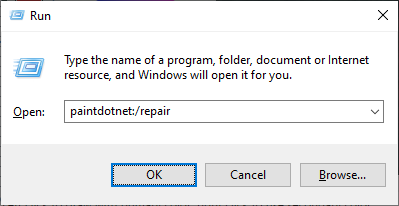
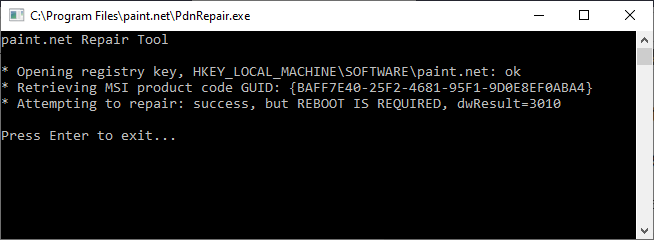
This command will run PdnRepair.exe from your Paint.NET installation directory. The repair tool will verify the Paint.NET installation and integrity of the files.
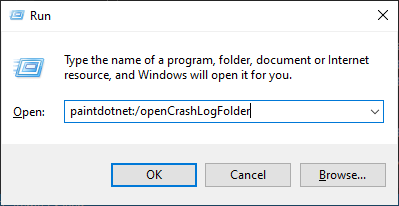
Opening the Crash Log folderpaintdotnet:/openCrashLogFolder
Open the Windows Run command using either of the following methods
Option 1: In the Search bar, type Run and press
Option 2: press both
Type in paintdotnet:/openCrashLogFolder followed by the
Force Update Check
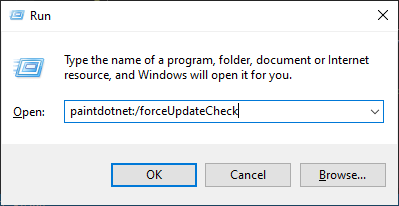
paintdotnet:/forceUpdateCheck
This is intended for troubleshooting scenarios to simplify acquiring the latest version.
Open the Windows Run command using either of the following methods
Option 1: In the Search bar, type Run and press
Option 2: press both
Type in paintdotnet:/forceUpdateCheck followed by the
Disable Plugins
paintdotnet:/disablePlugins
This is intended for troubleshooting scenarios where plugins are suspect. Running this command argument
stops plugins from being loaded at startup.
Open the Windows Run command using either of the following methods
Option 1: In the Search bar, type Run and press
Option 2: press both
Type in paintdotnet:/disablePlugins followed by the
Diagnostics
paintdotnet:/diagnostics
This is intended for troubleshooting scenarios where the app fails to load.
Running this command argument shows the diagnostic information even if the app fails to start.
This is the same information yielded by Settings > Diagnostics.
Open the Windows Run command using either of the following methods
Option 1: In the Search bar, type Run and press
Option 2: press both
Type in paintdotnet:/diagnostics followed by the
Reset Utility Windows
paintdotnet:/resetWindows
This command-line argument forces a hard reset of the placement and size of the four utility windows
(Colors, Tools, History & Layers).
It is intended for troubleshooting scenarios where the utility windows are in a state where they cannot
be seen or
interacted with (usually placed far off-screen or set to an unusably small size).
Open the Windows Run command using either of the following methods
Option 1: In the Search bar, type Run and press
Option 2: press both
Type in paintdotnet:/resetWindows followed by the