Layers Window 
The
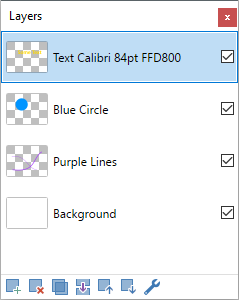
Think of layers in a multi-layered image as representing a stack of transparent sheets placed one on top of the other. Image elements on lower layers will be obscured by elements contained in layers higher in the stack if the element is in the corresponding area. For an in-depth discussion on this concept, please visit the Working with Layers section.
A new image is always created with a single layer named "Background". All images must have at least one layer.
Show/Hide the Layers Window
The
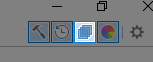
Clicking the Layers icon or pressing
Resetting the Layers Window
The window can be reset to its original position and size (including docking) by pressing
Relocating the Layers Window
The
The Active Layer
There is always one active layer. It can be identified by the highlighting in the
Note
It is important to understand that drawing operations only affect the active layer. The active layer is highlighted in the
It is easy to shift the active layer status from one layer to another. Simply click on any layer's name in the
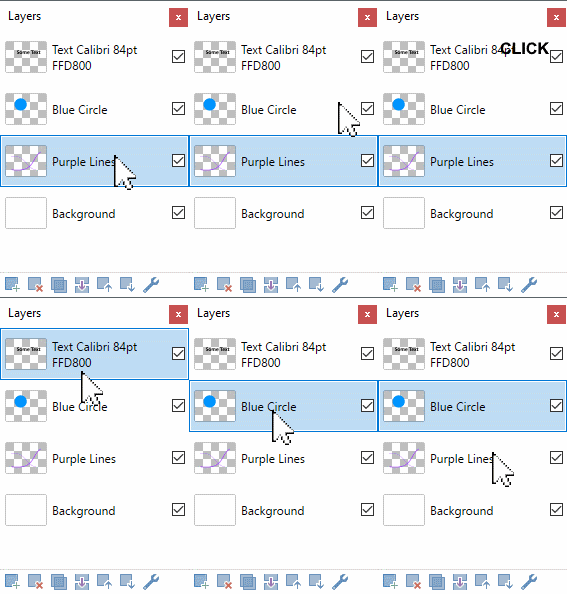
Only one layer may have the active layer status at any time.
Note
Assign any layer the active status by clicking on the layer in the
Layers can have their own blending mode and opacity settings. These are applied to every pixel in the layer.
Other layer options include whether a layer is currently visible or invisible (hidden).
Layer Window Icons
 New Layer
This adds a new, completely transparent layer to the image immediately above the active layer. The new layer will be given a generic name "Layer X" by default. X denotes the layer number - hence it is always a unique identifier.
New layers are filled with transparent black pixels (i.e. ARGB #00000000).
It is possible (and highly recommended) to change the default name to accurately reflect the contents of the layer (see Layer Properties below).
 Delete Layer
This deletes the active layer from the image. As all images must have at least one layer, the last remaining layer cannot be deleted.
 Duplicate Layer
This duplicates the active layer, including its contents and attributes. The new layer will be named uniquely following the pattern described above (Add New Layer).
 Merge Layer Down
Takes the active layer and combines or merges it into the layer immediately below it in the
 Move Layer Up
Moves the active layer one place higher in the layer order with each click.
 Move Layer Down
Moves the active layer one position lower in the layer order with each click.
Tip
New to Paint.NET is the ability to change the order of the layers using drag-and-drop.
Click and "drag" any layer in the
Tip
Quickly move a layer to the top or bottom of the layer stack using the
 Layer Properties
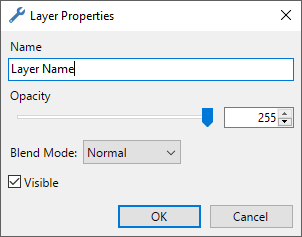
This icon opens the Properties Dialog for the active layer.
In this dialog the layer name, visibility, blend mode and opacity can all be set.
The same dialog can be opened by pressing the
Tip
Open the Properties Dialog for the active layer by pressing the
For more information about Blend Modes, see the Blend Modes section.