Tools Window 
The

Show/Hide the Tools Window
The
Clicking the Tools icon or pressing
Resetting the Tools Window
The window can be reset to its original position and size (including docking) by pressing
Relocating the Tools Window
The
Tools Window Contents
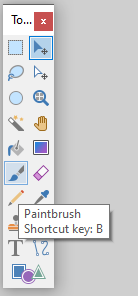
The
Tip
Hovering the mouse pointer over a tool icon shows a tool tip with the keyboard shortcut.
Selection Tools
 Rectangle Select
Use this tool to define a rectangular or square selection region. This tool is covered in detail in the Rectangle Selection Tool section.
 Lasso Select
This tool is used to create a freeform selection region. For information on how this tool works, see the Lasso Selection Tool section.
 Ellipse Select
This tool makes elliptical or circular selections. To find out how to use this tool, see the Ellipse Selection Tool section.
 Magic Wand
The
Move Tools
 Move Selected Pixels
This is used to move pixels that are in the layer or current selection.
 Move Selection
You may use this to move or modify the selection outline without affecting any pixels in the image.
Both these
View Tools
 Zoom
Zoom
This tool is used to zoom in, zoom out, or expand the canvas around a particular region.
 Pan
Pan
This tool scrolls, or pans the image. This functionality is also usable from any other tool at any time: hold down the spacebar and then click and drag with the mouse.
Both these
Fill Tools
 Paint Bucket
This tool fills areas of similar color with a different color. For more information on this tool, visit the Paint Bucket Tool section.
 Gradient
The
Drawing Tools
 Paintbrush
This tool is selected by default when Paint.NET starts. It is used to create stripes of color just like a paint filled brush would do, hence the name. This tool is covered in detail in the Paintbrush Tool section.
 Eraser
As the name suggests, this tool erases or removes areas of the image by setting the opacity, or alpha, of the pixels to 0. This tool is discussed in detail in the Eraser Tool section.
 Pencil
This tool allows editing of the active layer on a pixel-by-pixel basis. See the Pencil Tool section for more information on this tool.
Photo Tools
 Color Picker
Use this tool to "pick up" a color from the active layer and set it as the current
 Clone Stamp
This tool is used to copy regions of pixels between different layers, or within the same layer. For a detailed discussion on how to use this tool, visit the Clone Stamp Tool section.
 Recolor Tool
The
Text and Shape Tools
 Text Tool
This tool places text on the active layer. Find out how to use the
 Line/Curve Tool
Draw straight or curved lines on the active layer with this tool. More can be found on this tool in the Line/Curve Tool section.
 Shapes Tool
This is used to draw a number of predefined shapes. This tool is covered in detail in the Shapes Tool section.